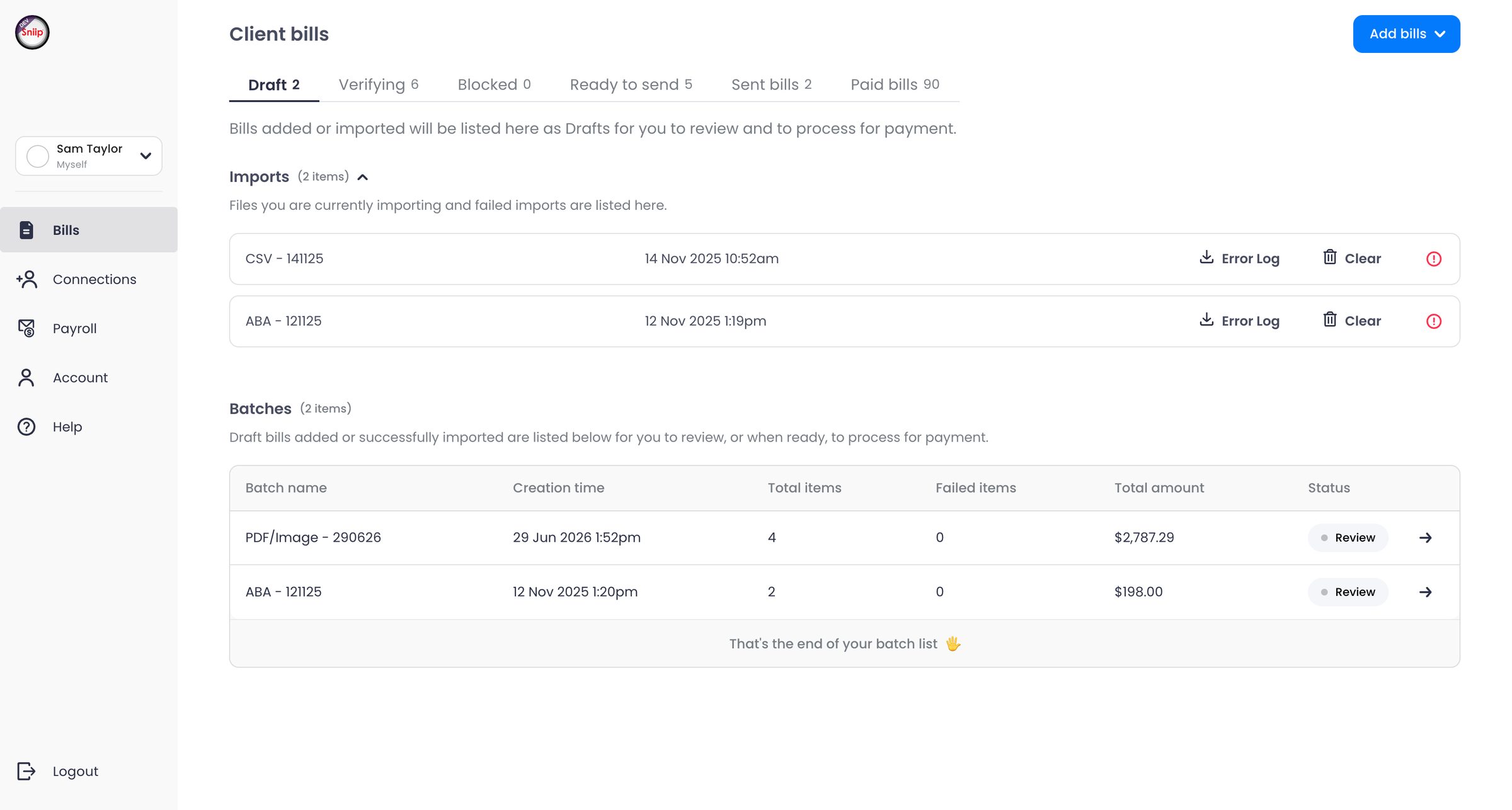
Users kept asking for a web version of Sniip. The agent portal was the first step: you add and check bills on a desktop, then send them to the Sniip app to pay. You can send them to your own phone or, if you are a bookkeeper or another kind of agent, to your clients.
- Company
- Sniip — bill payments, Australia
- Role
- Product Designer
- Team
- Me, 1 front-end and 2 back-end engineers, with the design manager and the COO
- Timeline
- 6 months, from first idea to release
- Platform
- Web (desktop-first)
- Information architecture
- Interaction design
- UI design
- B2B tools
01 ProblemPeople wanted to use Sniip on a desktop, some for their own bills and some for their clients’.
Users kept asking for a web version of the Sniip app. We started with the part where a big screen helps the most, adding bills and checking them, and kept the payment in the app.
This works for two kinds of people: those who organise their own bills on a desktop and pay them on their phone, and agents, like bookkeepers, who send each bill to the client who pays it. In both cases bills come as PDFs, photos, bank files and spreadsheets, and any of them could have payment details changed by a scammer.
02 ProcessMake it clear where every bill is, from upload to payment.
01
Only the client can add an agent
Only clients can add an agent, from Manage agents in the Sniip app. The agent receives an email, logs in and accepts, and only after that can they send bills to that client.
This means the agent has to wait for the client, but nobody receives an invitation on their phone that they never asked for.
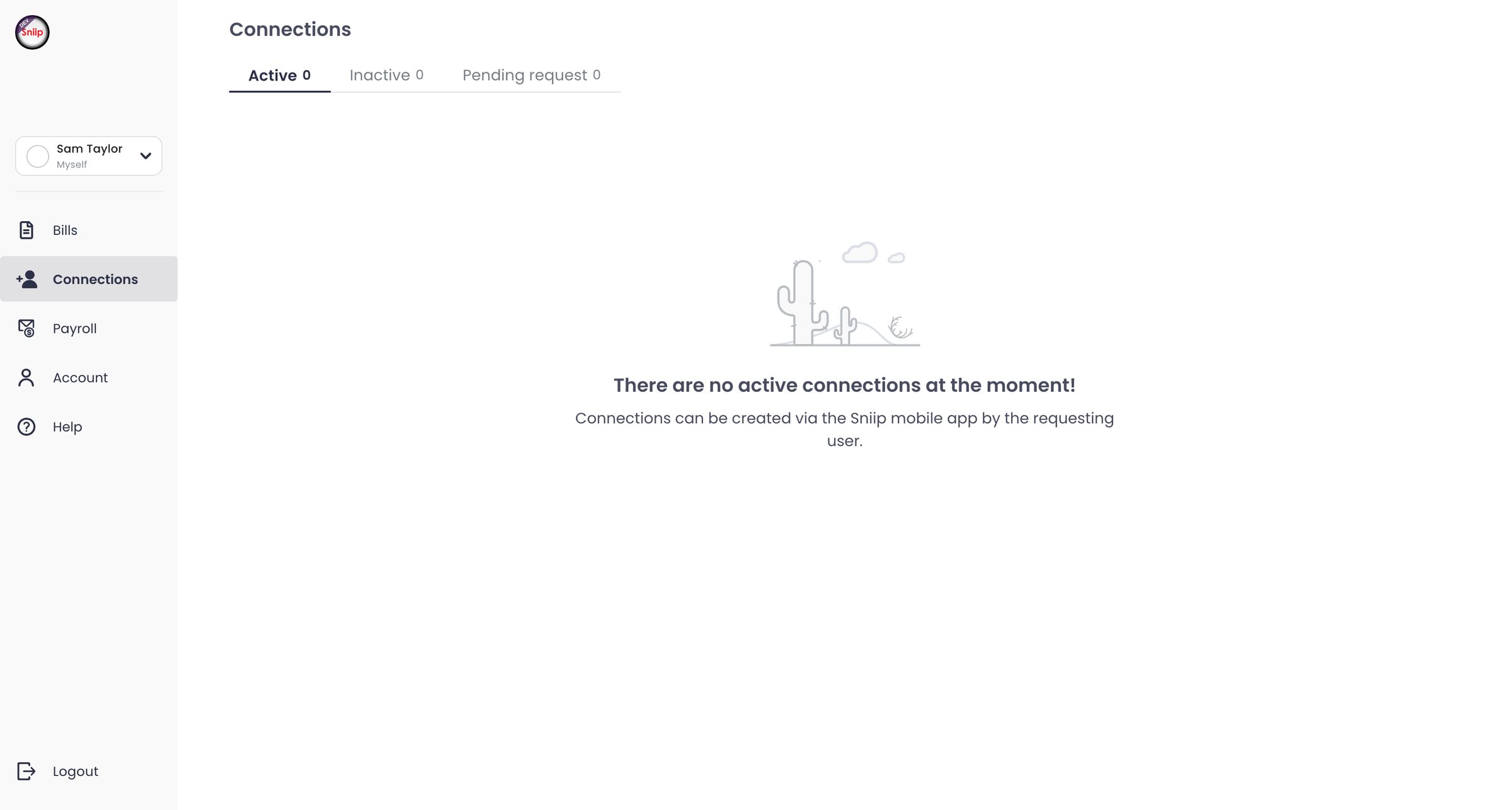
Connections are started by the client, from the app 02
Accept bills in any format, and keep them in one place
Bills come as PDFs, photos of paper bills, bank files and spreadsheets, so there are four ways to add them, plus a CSV template. They all end up in the same place, a batch in Drafts. Imports that fail stay visible with their error log, and every bill is reviewed before moving on.
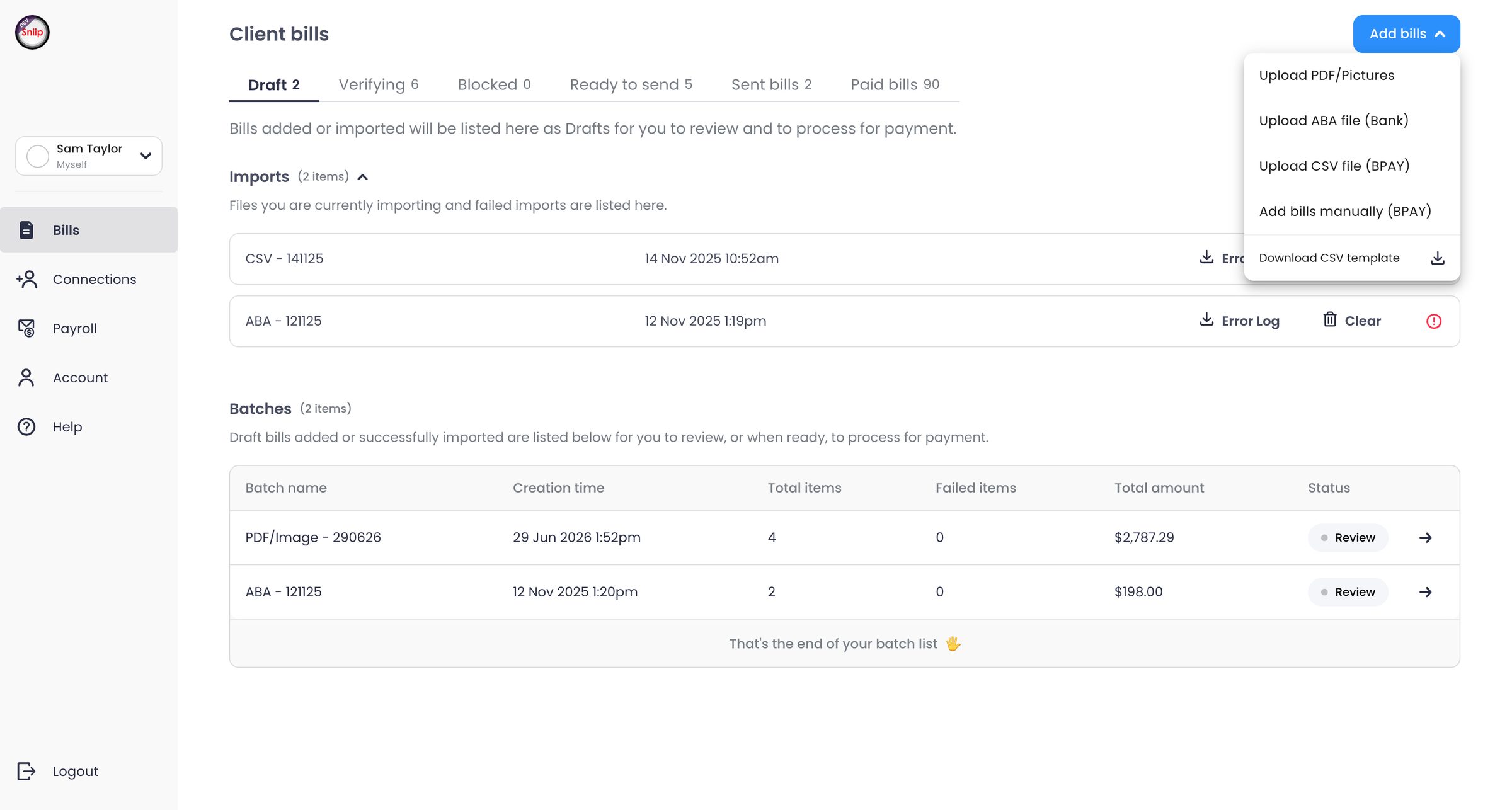
Four ways to add bills, one for each format Failed imports stay visible, with their error log 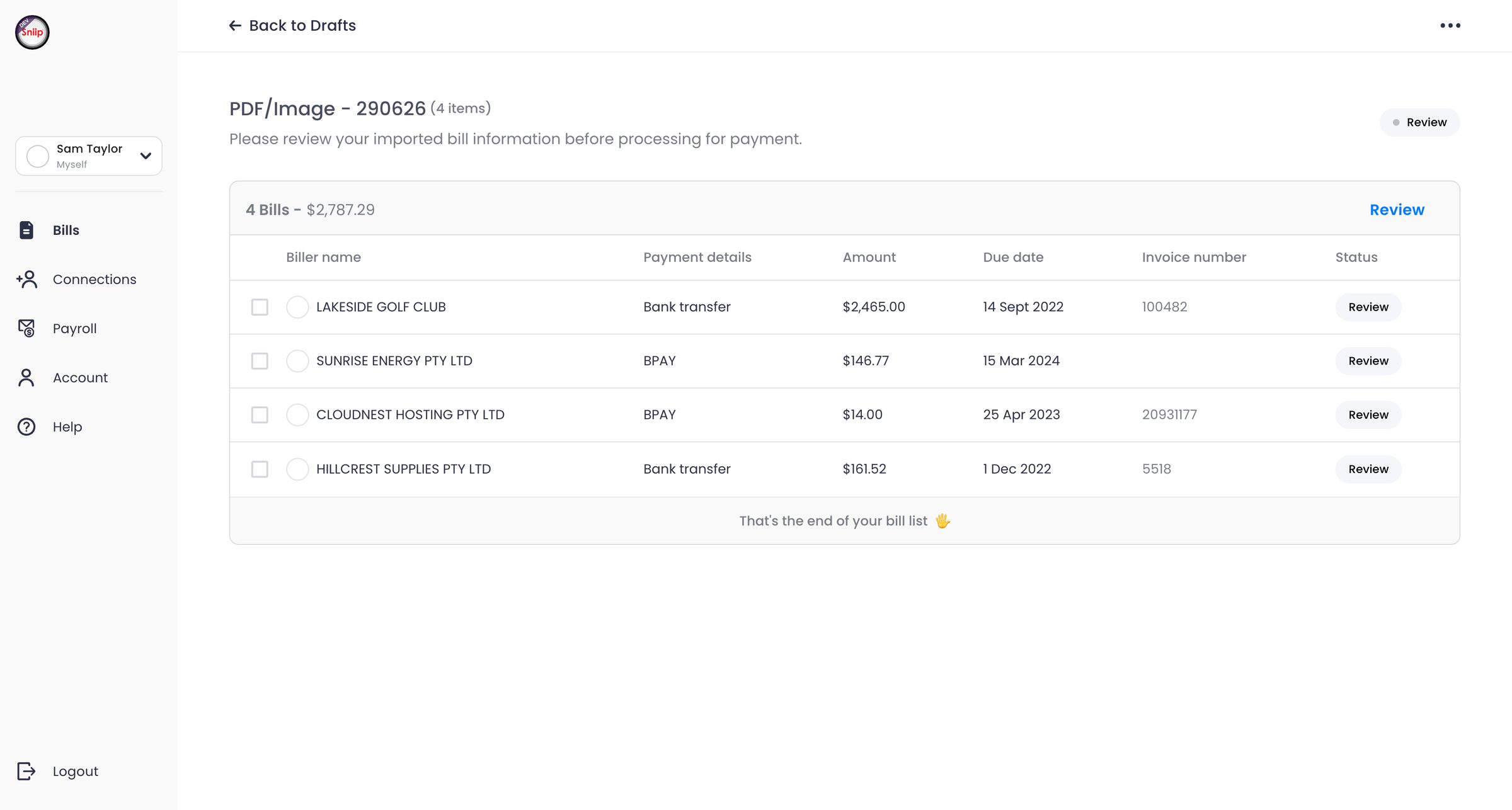
What was read from the files, ready to be checked 03
Use the bill status as navigation
There are six tabs, one for each stage of a bill, each with a count so the agent can see where the work is building up. A bill starts in Draft, moves to Ready to send once it is checked, is sent to the client’s app or the agent’s own, waits in Sent bills, and ends up in Paid bills with a notification and its receipt.
Each tab starts with a short sentence explaining what is in it, so nobody needs to look for a help page.
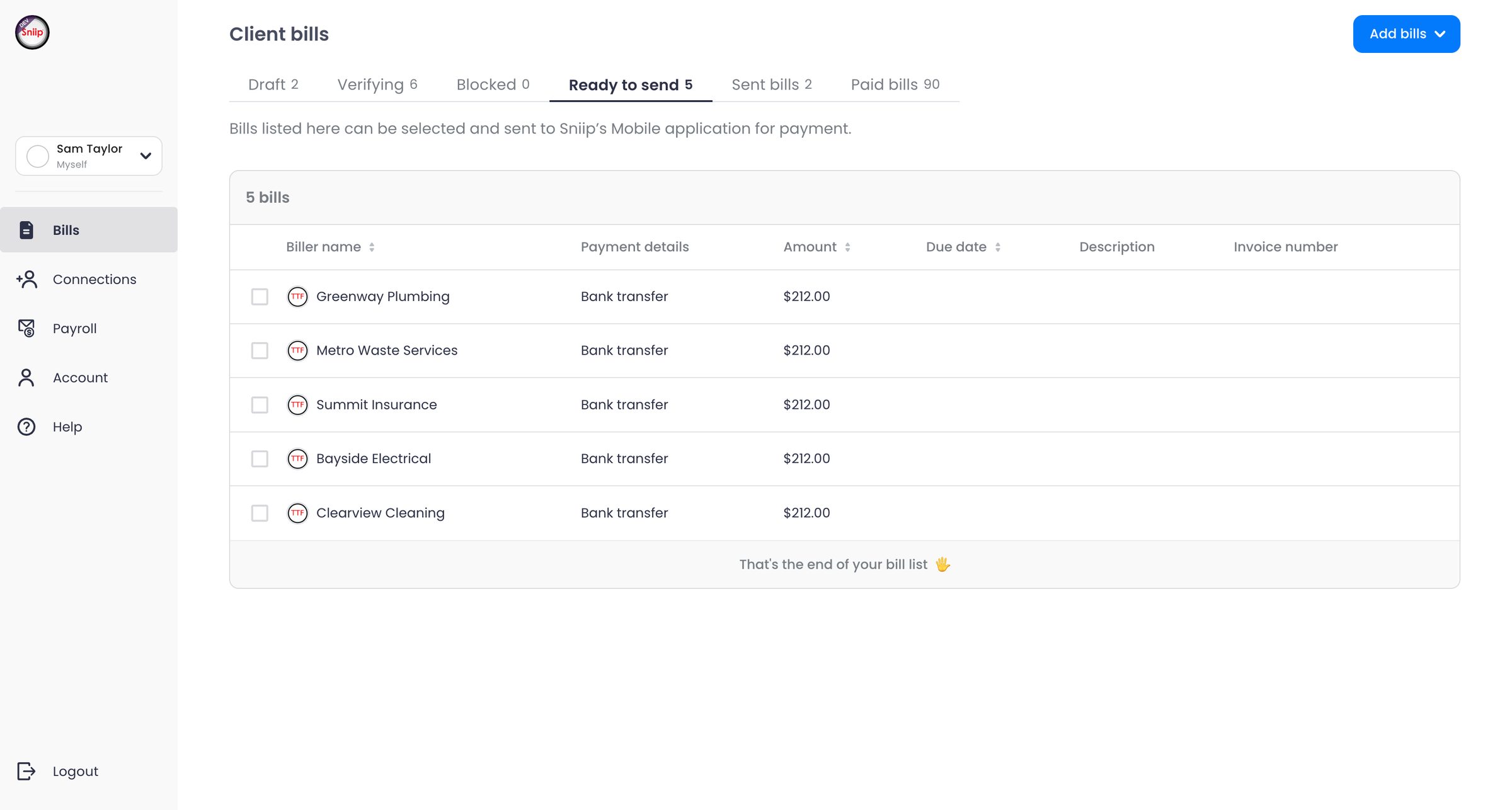
Ready to send: pick the bills, send them to the client 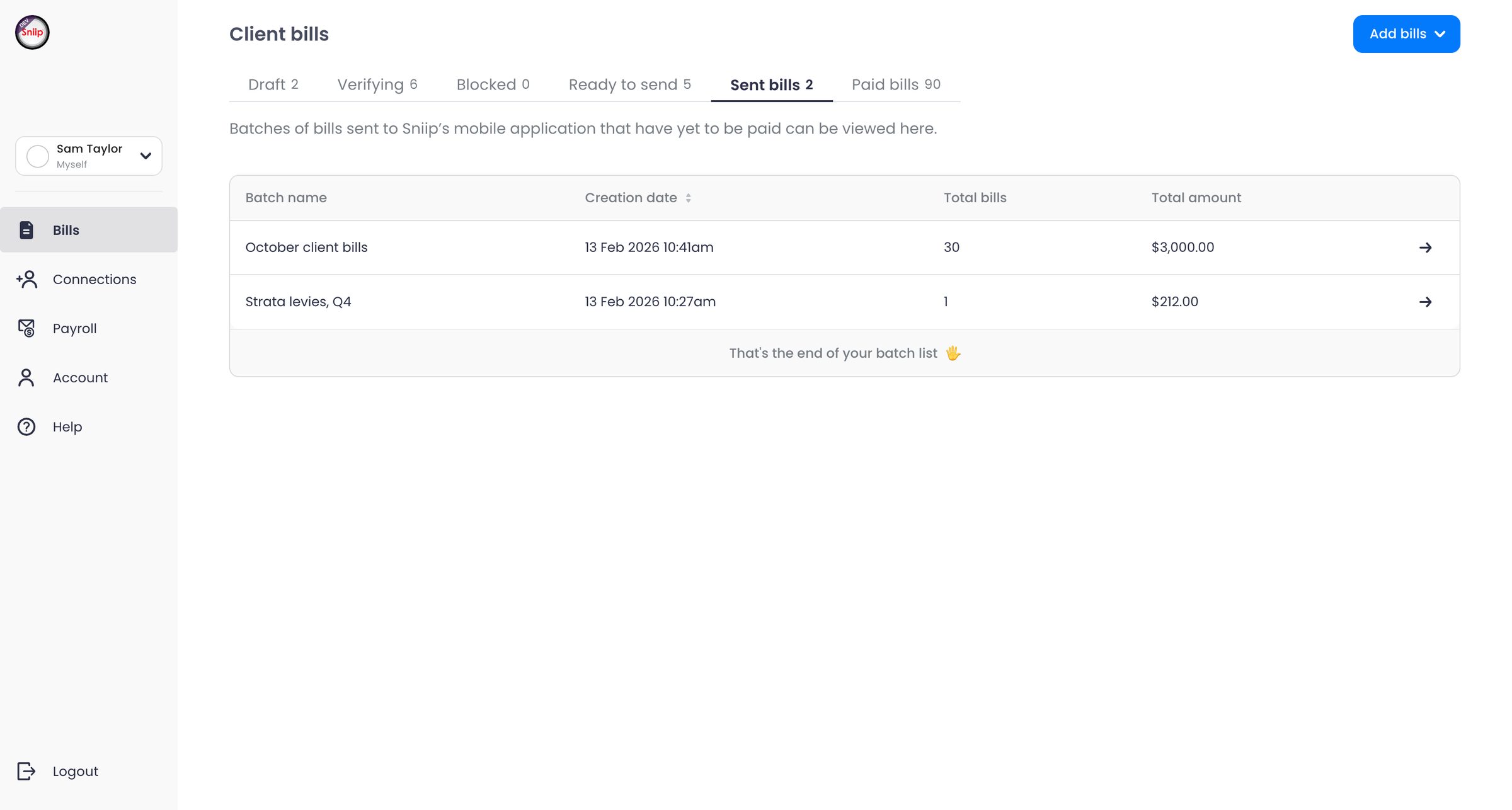
Sent: what clients have and haven’t paid yet 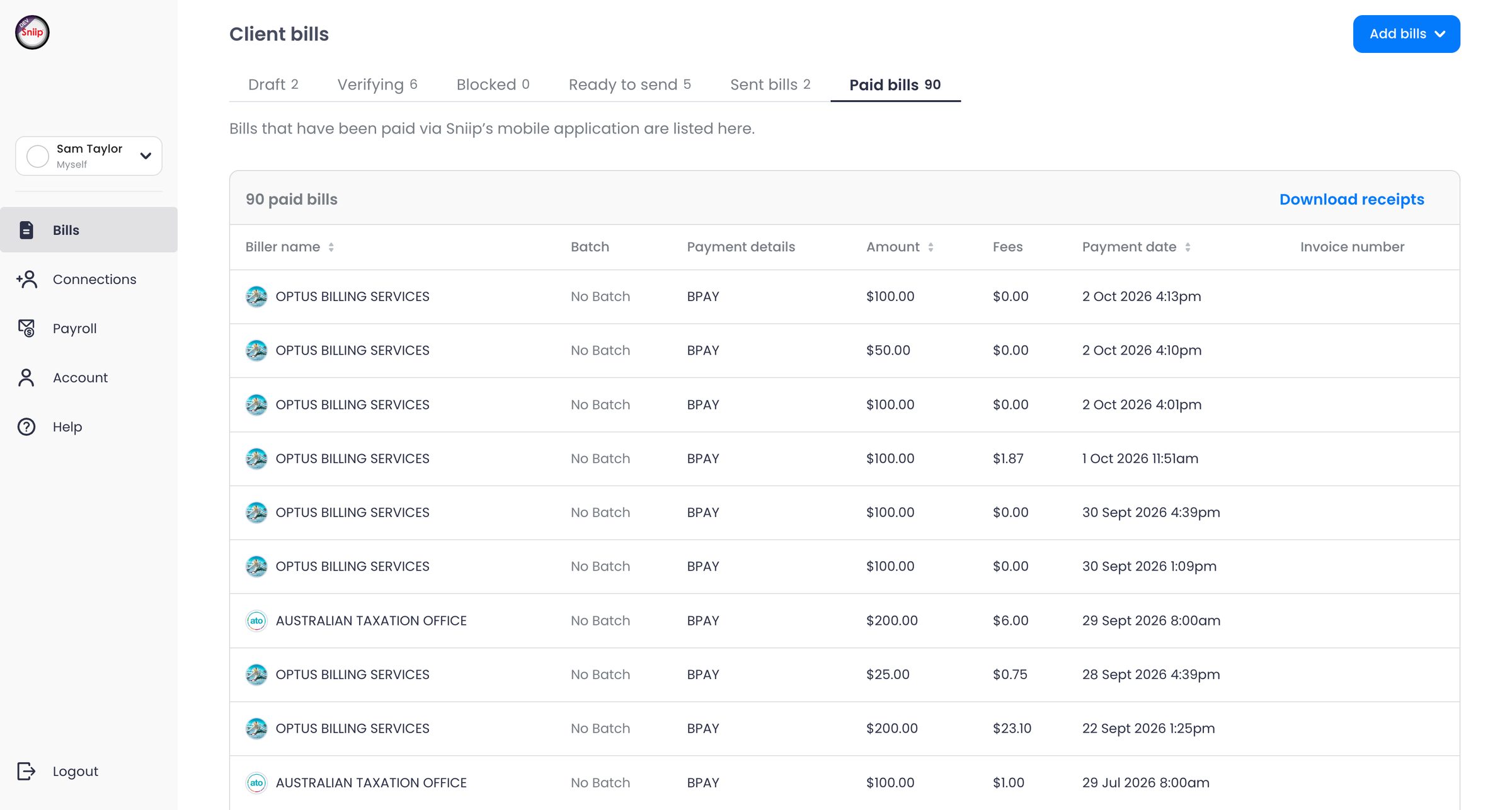
Paid: fees, dates and receipts for the books 04
Check new billers first, and explain why
BPAY billers are verified automatically. Billers paid by bank transfer are checked manually, because bank details are the easiest thing to fake on a bill. Their bills wait in Verifying, usually for less than 24 hours, with a note explaining why.
The first bill from a new biller takes longer, but nobody pays a bill with bank details that haven’t been checked.
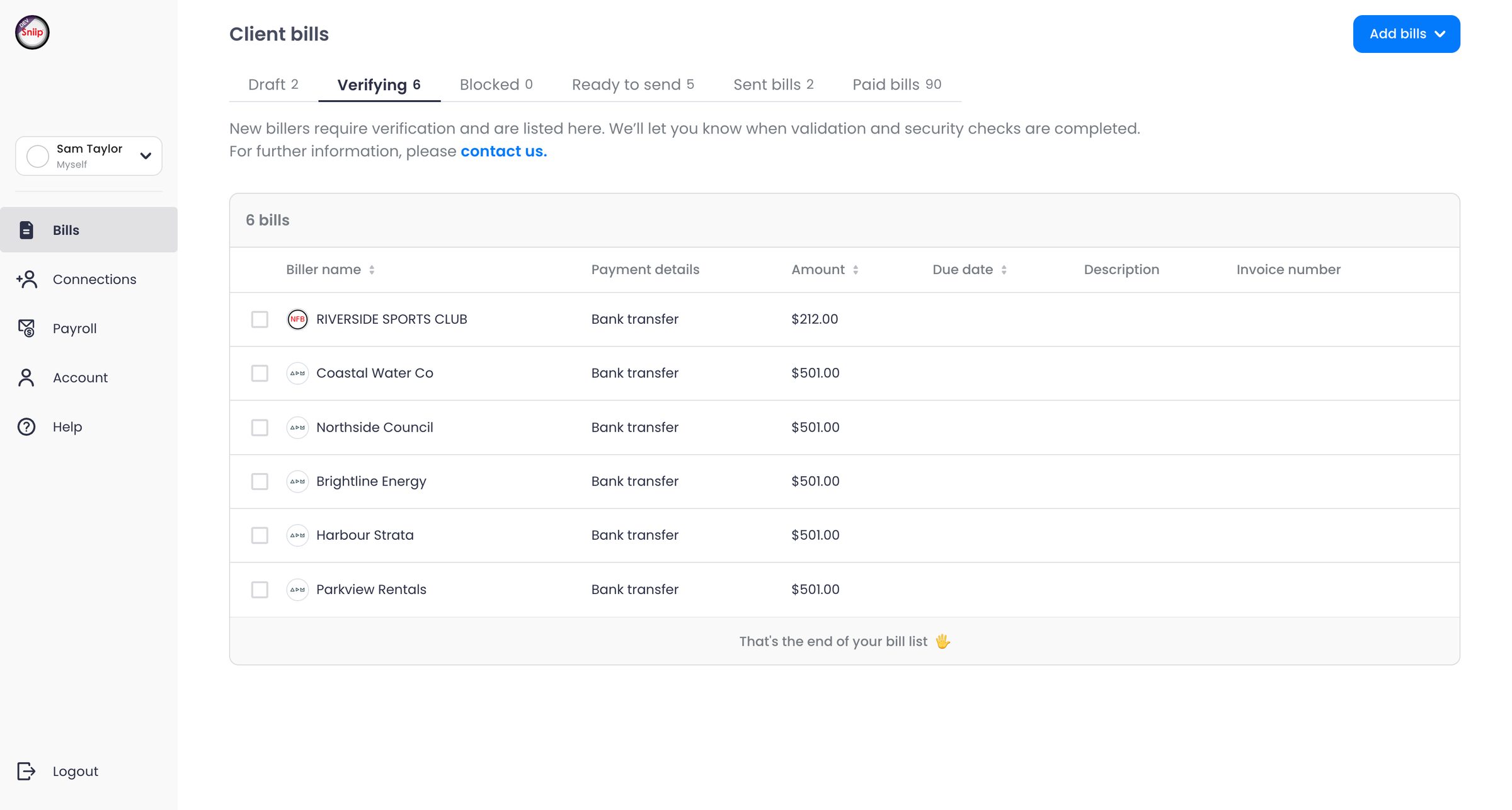
New billers wait here, with a note explaining why 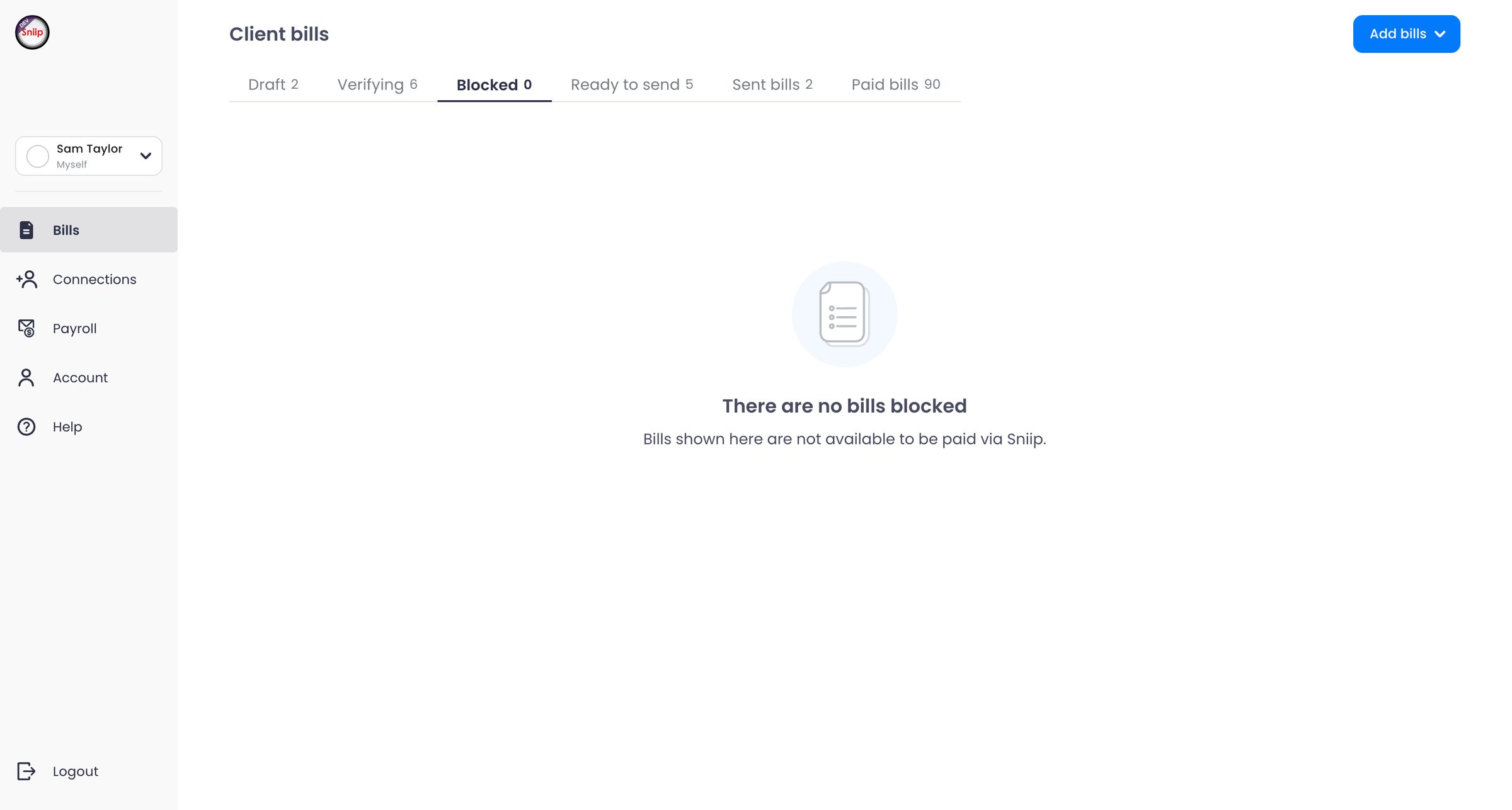
Even when empty, the tab explains what goes in it
03 SolutionA bill moves left to right through six tabs, from draft to paid.
All the bills are in one place, with tabs from draft to paid. Each bill arrives in the Sniip app ready to pay, on the agent’s phone or on the client’s.
04 OutcomeOver 100 people in the first month, and more than 1,000 bills paid in the first few months.
100+
People using the portal in its first month
1,000+
Bills paid in the first few months
50 / 50
People managing their own bills, and agents sending bills to clients
At first some people needed help, but with the support team guiding them it now works smoothly. The most requested feature, paying directly from the portal, was out of scope. The second most requested, payroll, was added after launch: an agent uploads a business’s payroll as an ABA file, and the portal matches each payment to the right employee and flags any bank details that have changed.
Looking back
The client selector. It stays on one client until you change it, and some people forgot to switch and sent bills to the wrong client. I would make the current client impossible to miss, and have the send step say whose app the bills are going to.
With the front-end and back-end engineers, the design manager and the COO at Sniip